 klad
Animating frame by frame
Draw an animation one drawing at a time, check it against the drawing before, and play it. klad can draw the in-betweens for you.
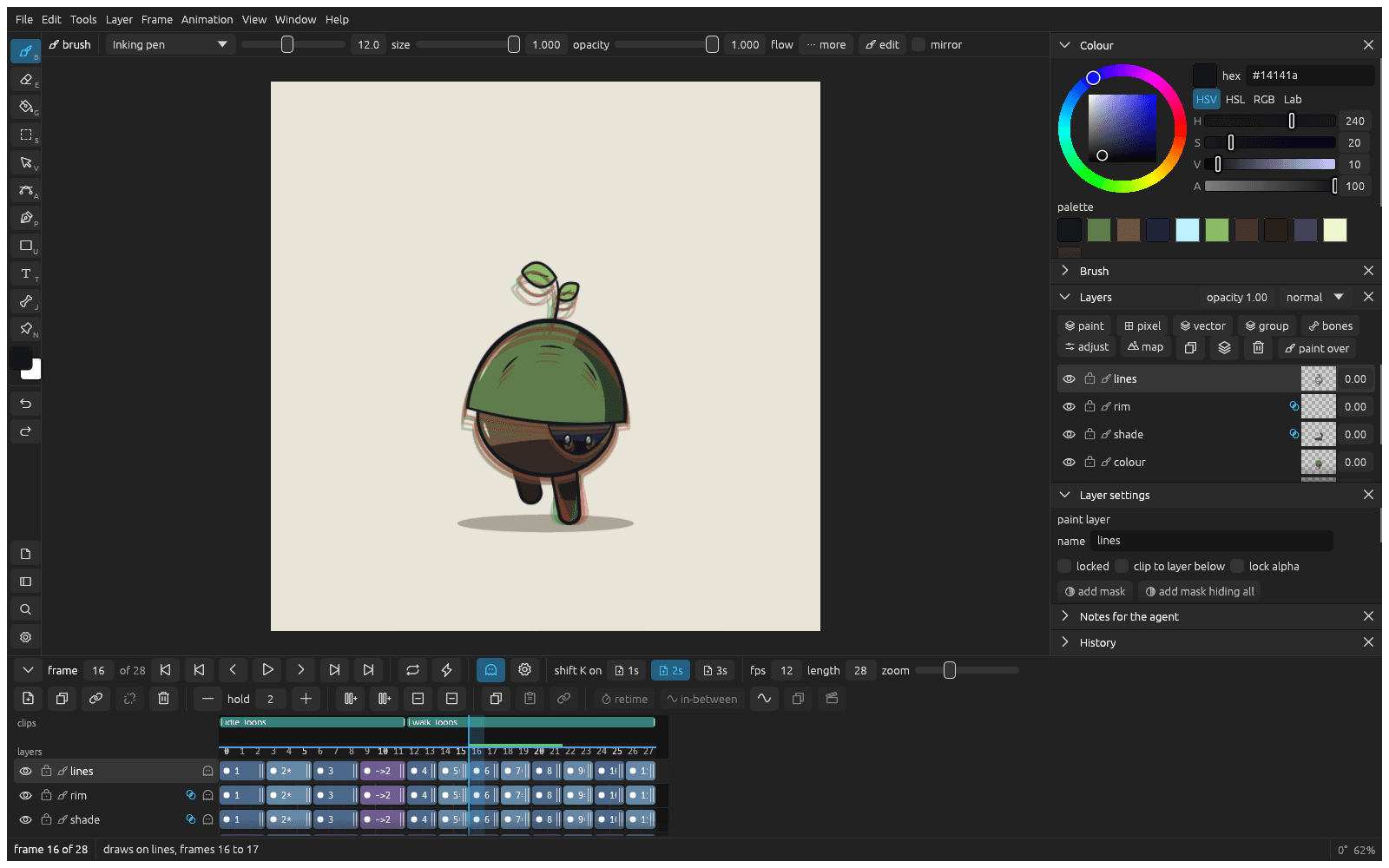
Draw the next frame
- Draw the first pose.
- Press shift K. You get a blank drawing on the next frame.
- Press O for onion skin: the drawing before shows in red under the one you're drawing.
- Draw the next pose, and repeat.
- Press Return to play, and again to stop.
A drawing of one frame shows the timeline folded to its bar. It opens when the second drawing is made, or with the arrow at its left.
To animate on twos, click 2s next to shift K on in the timeline header first.
Flip through your drawings
Press , and . to go a frame back and forward. Or hold Q and move the pen sideways to flip through the drawings like the corner of a stack of paper.
Change the timing
Click the drawing's cell in the timeline, then press = to hold it a frame longer and - to take that back. Later drawings move along.
These keys, and I to insert a frame, work while the timeline is in use: a blue line around the frames shows that it has the keys. After a stroke on the canvas, click a frame first, or use the Frame menu, which works from anywhere.
Start a pose from the last one
Right click the drawing's cell in the timeline and pick duplicate to the next frame, then change the copy into the next pose.
Repeat a run of frames
- Drag over the frames in the timeline. To take every frame, click a frame and press cmd A.
- Press cmd D, or click the duplicate button above the frames.
The frames are repeated right after themselves as copies, and the copies are selected, so cmd D again adds another round. While frames are selected, cmd C and cmd V copy and paste them, and Delete removes their drawings.
Make clips for a game
Drag along the empty strip above the frame numbers to make a clip, then click its bar to name it (idle, walk, attack). Each clip exports as its own animation.
Let klad draw the in-betweens
- Draw two keys with empty frames between them, and name the parts of both.
- Click the first key's cell and shift click the second one's.
- Click in-between in the selection bar.
- Choose how many drawings to make and how they're spaced, and click make the in-betweens.
After you change a key, select the range again and click redo the in-betweens in the selection.
From docs/guide/animating.md in Klad at v0.4.0 (971a89b).